> ## Documentation Index
> Fetch the complete documentation index at: https://tomee-mintlify-c72b8cbe.mintlify.site/llms.txt
> Use this file to discover all available pages before exploring further.
# Suggest changes in the editor
> Propose text changes as suggestions that teammates can review, accept, or reject in the editor without modifying the current page content.
Suggestions let you propose changes to text while preserving the current content. Teammates can review, accept, or reject your suggestions.
Suggesting mode applies to page text. Editors and admins can accept or reject any suggestion; viewers cannot. See [roles](/dashboard/roles) for details.
Pending suggestions appear as highlighted text in the editor and are listed in the sidebar alongside comments so reviewers can find them.
## Make suggestions
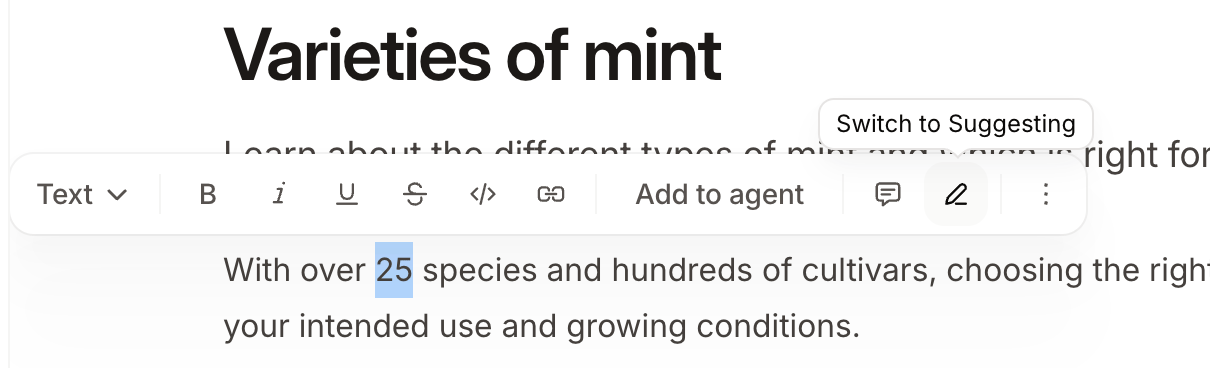
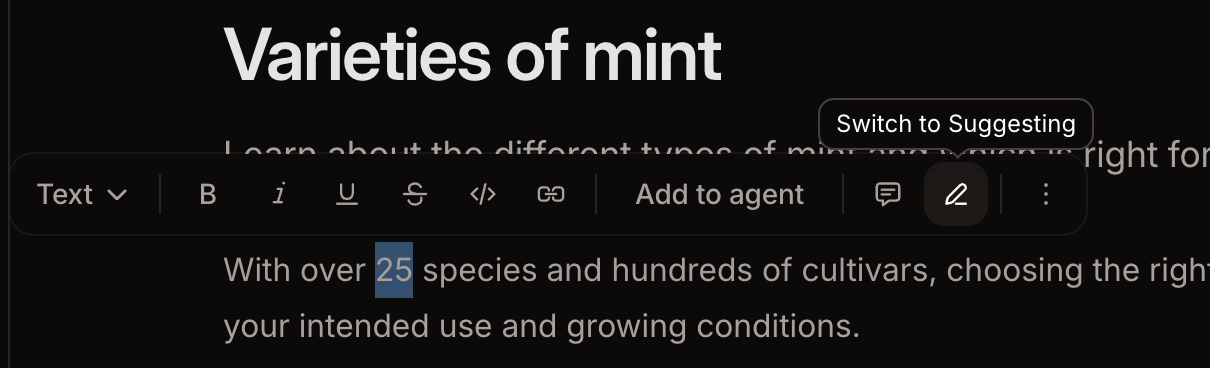
1. Highlight any text on the page.
2. Click the **Switch to Suggesting** button in the toolbar.
3. In suggesting mode, edit any text. Deletions and insertions appear with highlighting so that reviewers can identify the changes you propose.
4. To exit suggesting mode, click the **Switch to Editing** button.
[Viewers](/dashboard/roles) are always in suggesting mode. Suggesting mode activates automatically when a viewer opens the editor and viewers cannot turn off suggesting mode. This lets viewers propose changes without directly editing content.
 ## Accept a suggestion
1. Click the highlighted suggestion text.
2. Click the **Accept** button to apply the suggested change.
Accepting a suggestion resolves and deletes the suggestion thread. The accepted change becomes part of the current draft and goes live the next time you [publish](/editor/branching-and-publishing).
## Reject a suggestion
1. Click highlighted suggestion text.
2. Click the **Reject** button to discard the proposed change.
Rejecting a suggestion resolves and deletes the suggestion thread.
## Accept a suggestion
1. Click the highlighted suggestion text.
2. Click the **Accept** button to apply the suggested change.
Accepting a suggestion resolves and deletes the suggestion thread. The accepted change becomes part of the current draft and goes live the next time you [publish](/editor/branching-and-publishing).
## Reject a suggestion
1. Click highlighted suggestion text.
2. Click the **Reject** button to discard the proposed change.
Rejecting a suggestion resolves and deletes the suggestion thread.