

Make suggestions
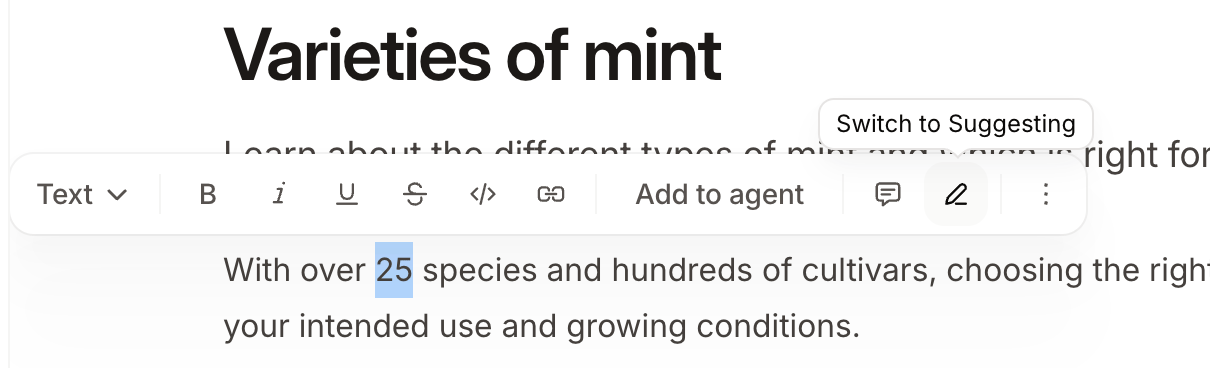
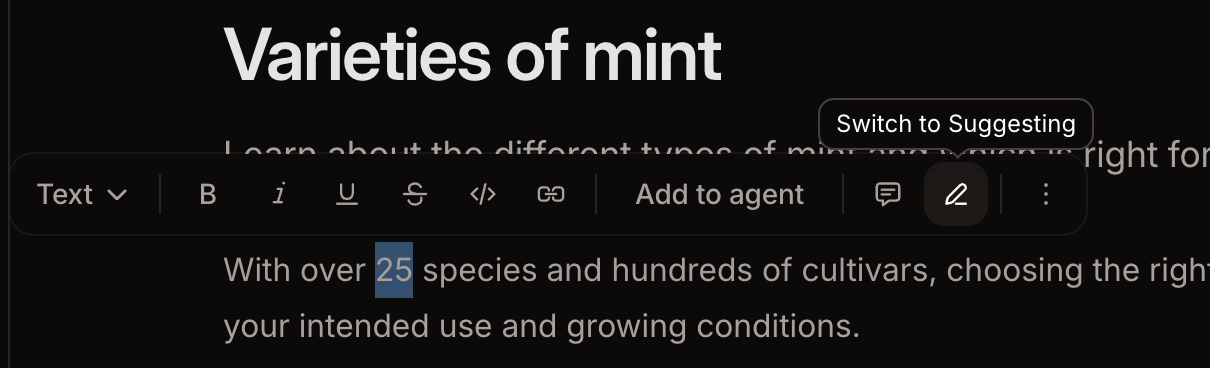
- Highlight any text on the page.
- Click the Switch to Suggesting button in the toolbar.
- In suggesting mode, edit any text. Deletions and insertions appear with highlighting so that reviewers can identify the changes you propose.
- To exit suggesting mode, click the Switch to Editing button.
Viewers are always in suggesting mode. Suggesting mode activates automatically when a viewer opens the editor and viewers cannot turn off suggesting mode. This lets viewers propose changes without directly editing content.
Accept a suggestion
- Click the highlighted suggestion text.
- Click the Accept button to apply the suggested change.
Reject a suggestion
- Click highlighted suggestion text.
- Click the Reject button to discard the proposed change.